
How can we help?
-
Getting Started
-
Acts and Legislation
-
Bylaws
-
Warrants
-
General Delegations
-
Financial Delegations
-
Memos and Supporting Records
-
Reports and History
-
My Account and Setup
-
Frequently Asked Questions
-
Microsoft Entra ID SSO
-
AI Integration
-
Tutorials
- LocoDELEGATIONS Tutorial – Finding Act
- LocoDELEGATIONS Tutorial – Searching from the Home Page
- LocoDELEGATIONS Tutorial – Understanding an Act and Its Delegations
- Manage My Account and Council Setup
- Add a Section
- Manage Memos
- Add Delegations to a Section
- Manage Bylaws
- Manage Warrants
- Manage General Delegations
- Manage Financial Delegations
- Create and Export Reports
- Search, View and Export History
- Administrator Pre-Go-Live Checklist
Set Up Public Financial Delegations
Posted
Updated
ByAdrian Sole
Screens and labels may vary slightly as LocoDELEGATIONS is updated.
Setup Financial Delegations Public Availability
Administrator level access.
- Login into your account and look for the account name at the top right area of the screen.
- Click on the account name to display the account menu, and look for Setup.
- On the setup page, look for Website Settings and click Manage.
- Under Settings, look for Financial Delegations Publicly Available option and tick to allow public access to financial delegations.
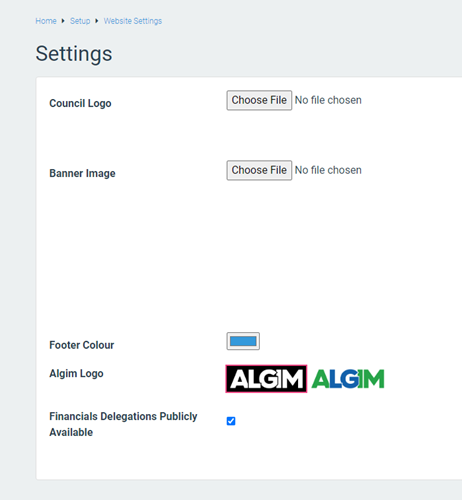
Table of Contents